Meeting notes

The meeting writes itself.
Nothing joins it.

Automagisk hears the meeting app already running on your Mac, writes down what is said, and drafts the minutes using the template you picked. Speech recognition runs right here. The audio never leaves the machine.

macOS 26 or newer · Apple Silicon · free for 14 days

No guest

The participant list looks normal

Automagisk taps the audio from the meeting app already running on your own machine. No new participant walks into the meeting, and nobody else has to approve anything for you to get minutes.

No upload

The audio stays here

The transcript is written on your Mac. The recording is deleted as soon as the minutes are done. There is nothing to upload, and no server of ours to upload it to.

One price

NOK 99 for the whole app

Meeting minutes are part of Automagisk, not an add-on. No price per seat, no minutes to count, all your Macs on one subscription. The model you pick for the minutes you pay the provider for, or you run it free on your Mac.

The film

Watch it happen.

The meeting is detected, the transcript arrives while it runs, slides from the shared screen land in the strip, and the minutes are written when it ends. Real views from the app, with sample data.

No sound. Everything you see is drawn by the app itself.

How it works

From the meeting starting to the minutes sitting there.

You press nothing to begin, and you do not have to remember to stop. The only thing you do is say no when you want to.

  1. The meeting is detected

    Automagisk notices that a meeting app is making sound. Zoom, Microsoft Teams, Webex, FaceTime, Slack, Discord, and meetings in Chrome, Safari, Edge, Brave, Arc, Vivaldi and Firefox. No calendar connection is required, but connect one and the meeting gets its name.

  2. You get ten seconds to say no

    The menu bar icon changes and counts down before recording starts. Press “Do not record this meeting” and it will not ask again until that app stops making sound. The wait can be made longer, and a recurring meeting can be switched off in advance, so it never even counts down.

  3. The audio is tapped from the meeting app alone

    Recording is bound to the process making the meeting sound. Spotify, notifications and the video in another tab do not exist to it. The card says which app it hears. If the meeting is in a browser, the browser is what it hears, and the app says so rather than hiding it. Your own voice comes from the microphone, on its own track.

  4. The transcript arrives while the meeting runs

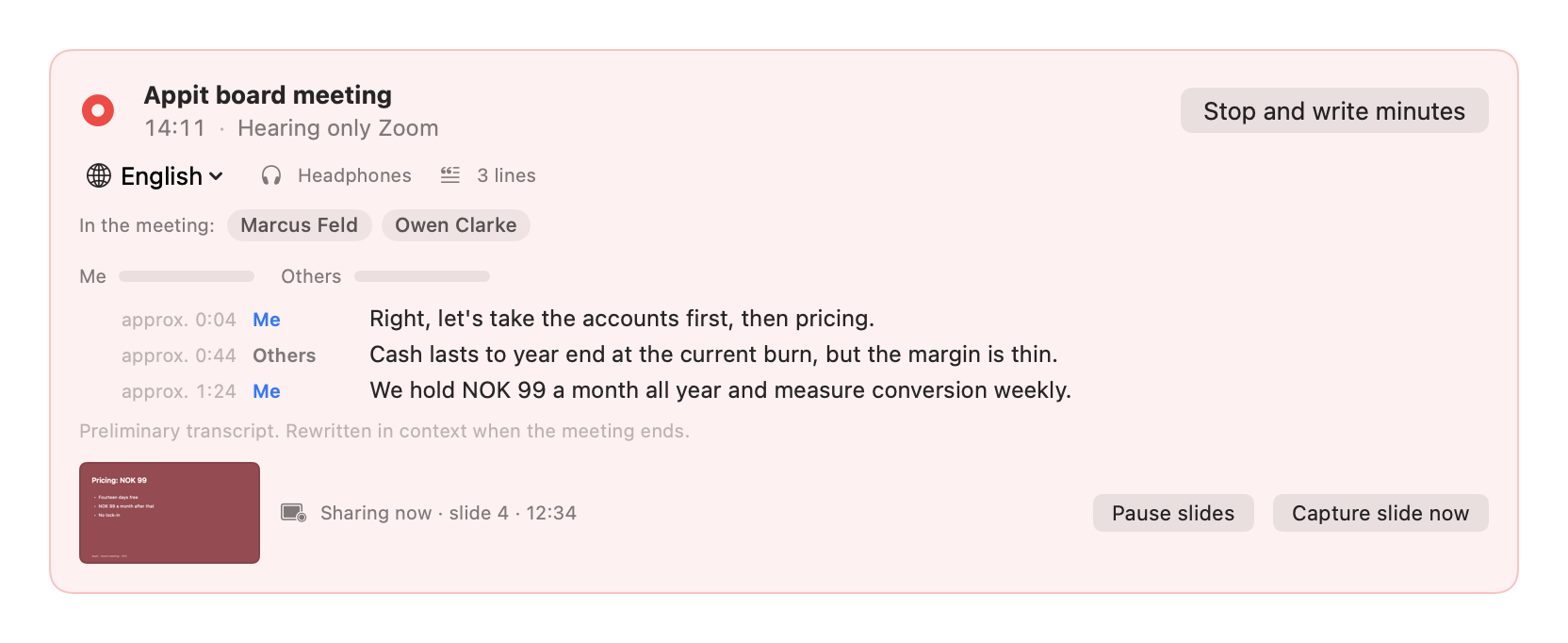
    The live card shows the last lines with an approximate time and who spoke, a level meter for you and for everyone else, and “Transcribing …” while it works. Lines it is unsure about are drawn fainter. The text is preliminary and gets rewritten in context when the meeting ends.

  5. The minutes follow the template you picked

    Once the meeting is over the transcript goes through the model you chose for minutes, and comes back as a document with the items, the decisions and the follow-up. Then the audio is deleted. The minutes can email themselves to you.
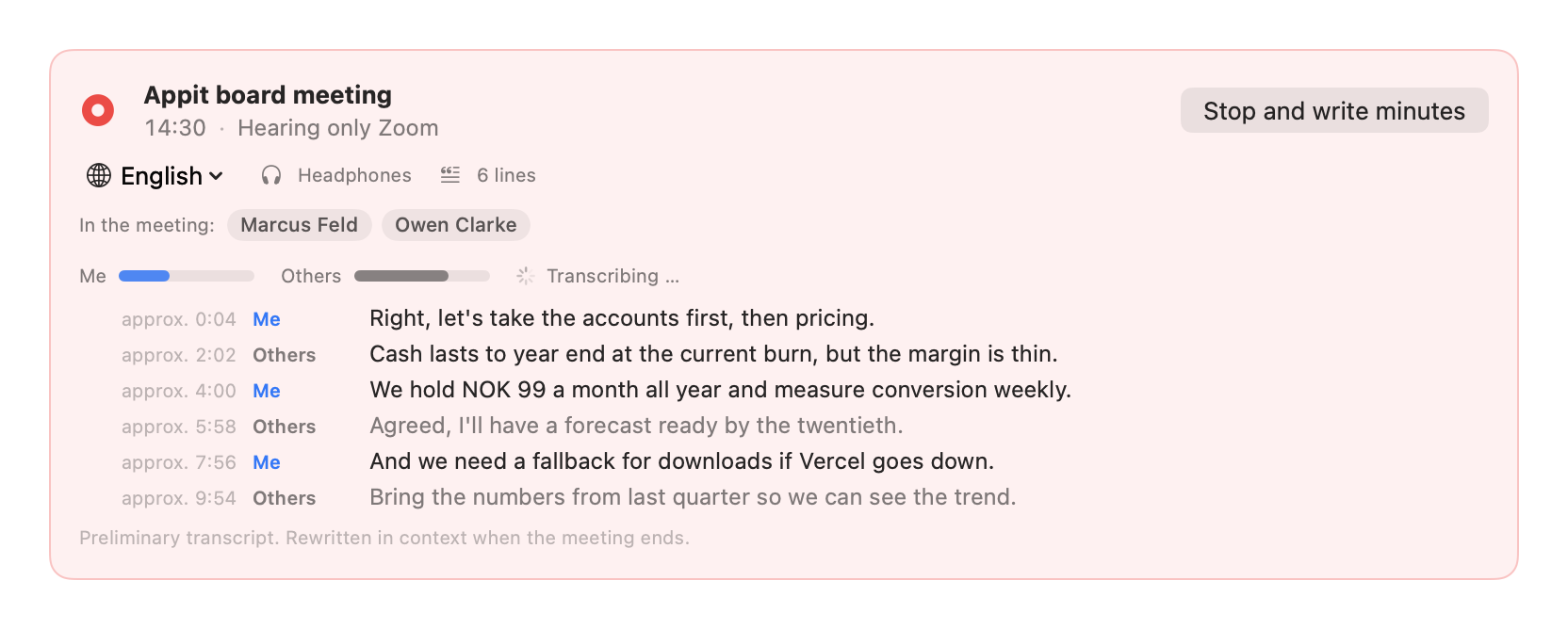
The live card during a meeting: red recording dot, “Hearing only Zoom”, a level meter for Me and Others, and six lines with timestamps and speakers
The live card while the meeting runs. Level meter, who is in the meeting, and the last lines.
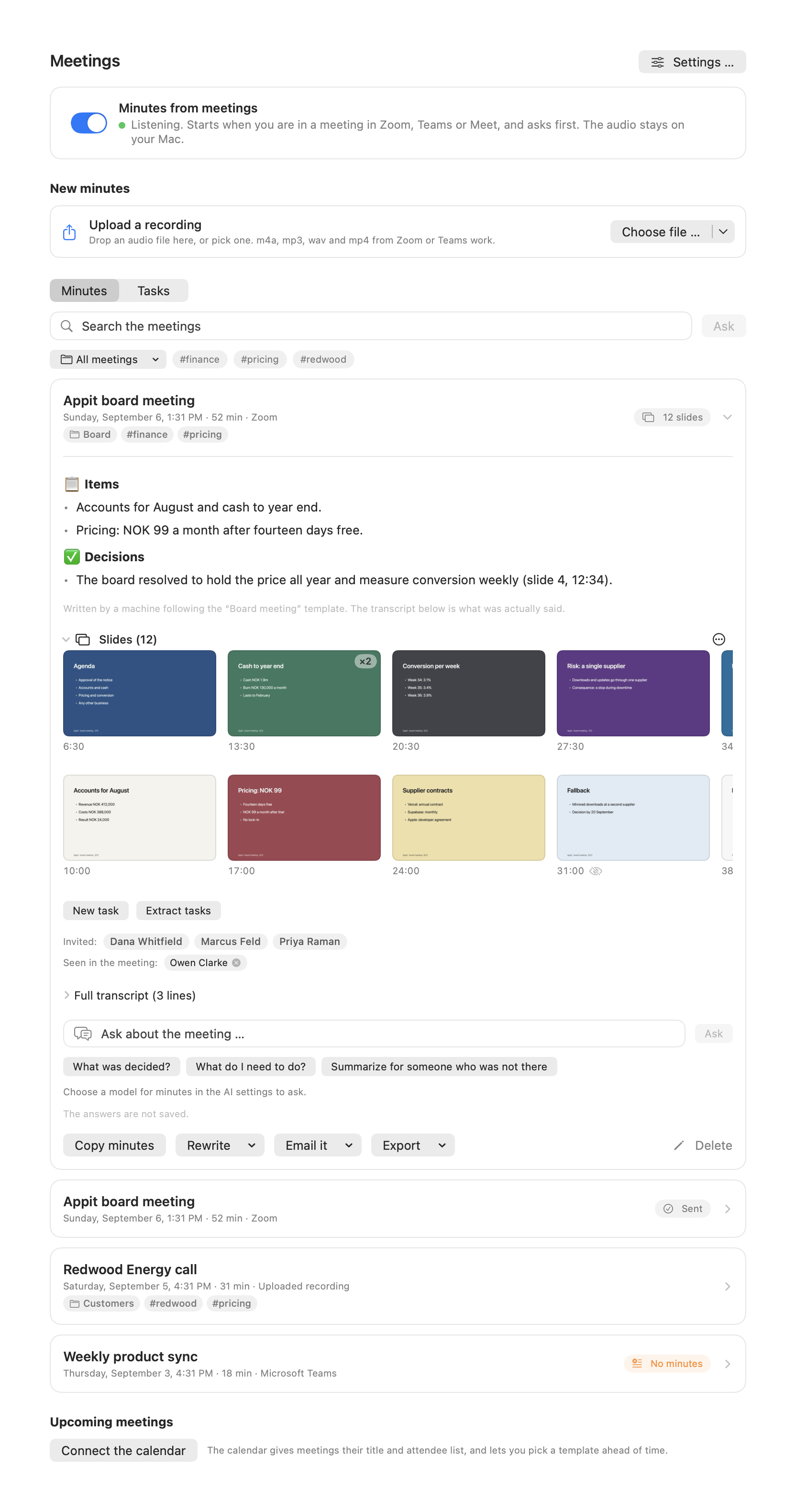
The whole Meetings page: the main switch, upload a recording, the Minutes and Tasks tabs, the search field, the filter row, the open meeting card and upcoming meetings
The whole Meetings page. Scroll inside the image to reach upcoming meetings.

Screen sharing

If someone shares, you get the slides.

The numbers on a slide are often never read out loud. Automagisk can capture stills of the meeting window while someone shares, read the text here on your Mac, and let the minutes use it to get names, figures and agenda items right.

The live card when something is shared: a thumbnail of the slide with “Sharing now, slide 4, 12:34” and the buttons Pause slides and Capture slide now
“Sharing now · slide 4 · 12:34”. You can pause the capture, or take one right away.
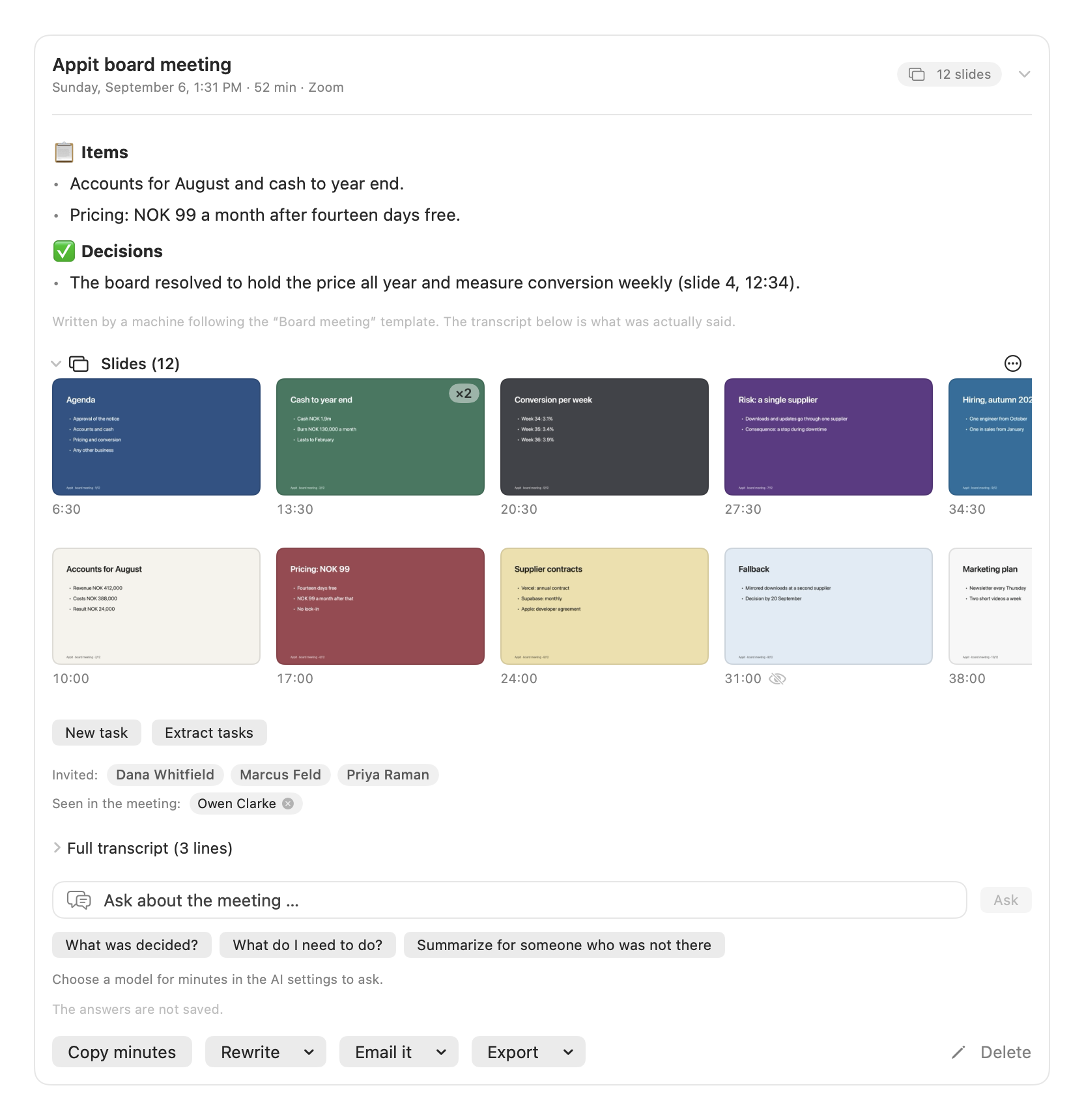
The meeting card with the slide strip: the minutes above, and below a strip of twelve thumbnails with timestamps
The strip on the meeting card. A decision shows which slide it belongs to.
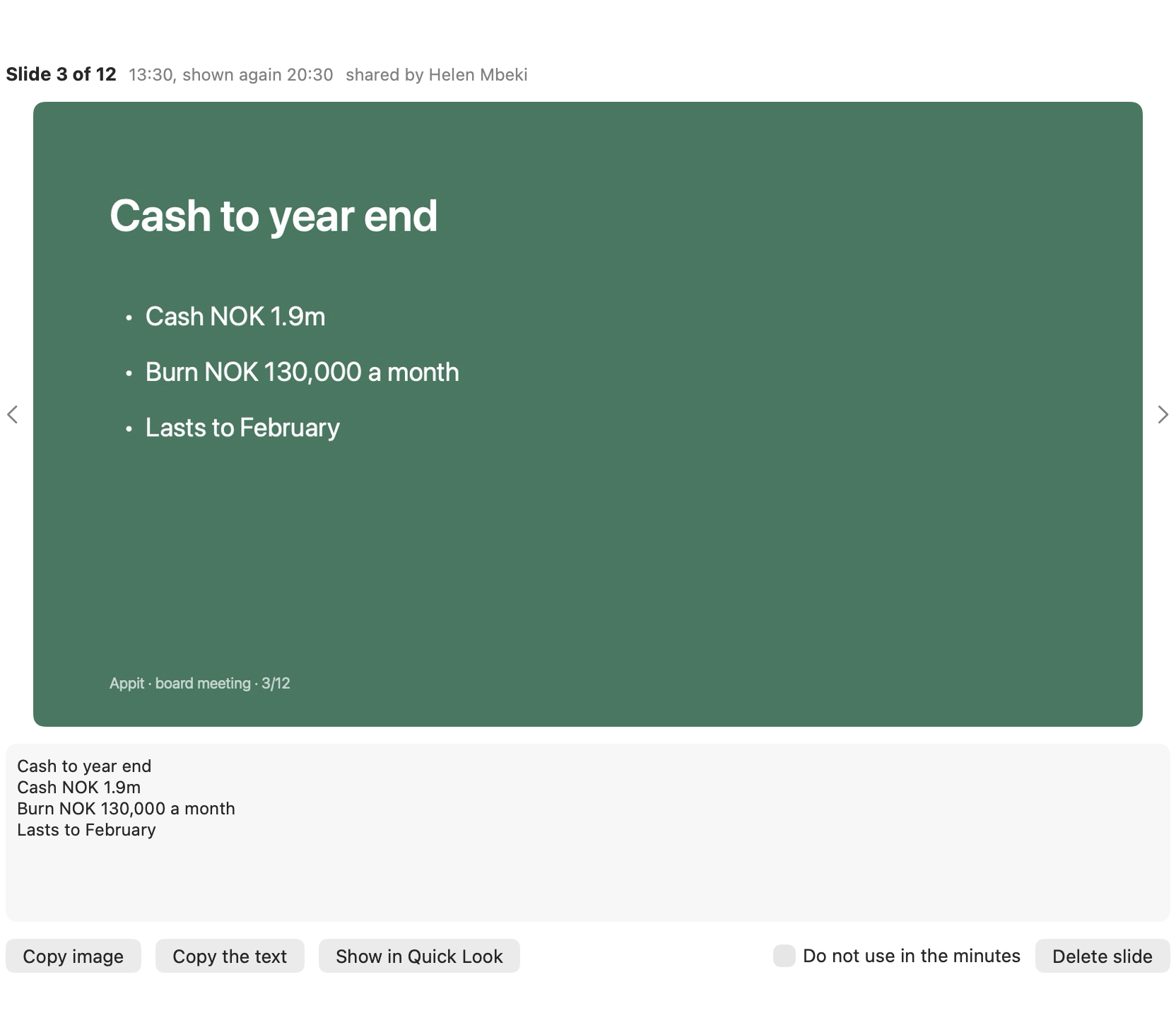
One slide in a large view with the text read from it below, and the buttons Copy image, Copy the text, Show in Quick Look, Do not use in the minutes and Delete slide
One slide, with the text that was read from it. You can keep it out of the minutes, or delete it.
One window

Only the meeting window

Capture is bound to the meeting app’s window, chosen by app and window title. The desktop, other programs and other browser tabs cannot come along, not even when they sit on top. Window titles are never stored.

Stills

Not video

One image at a time, and only when the picture has held still for a few seconds. Camera feeds, participant tiles and the chat panel are discarded. A slide that builds up bullet by bullet ends up as one image, not four.

Off by default

You turn it on yourself

It needs screen recording permission. macOS shows a recording symbol in the menu bar while it happens, and asks now and then whether Automagisk may continue. That is one reason the switch is off until you turn it on.

Text read here

OCR on your own machine

The images are stored encrypted with the meeting and deleted with it. Images that look like they show national ID numbers, card numbers, passwords or health information are skipped before anything is written to disk. Only the count is kept, never the reason.

When you share

It tries to hold back

Automagisk reads the meeting app’s own label, in ten languages, and holds back while you are the one presenting. The text in the app promises to try, not that it never misses.

In the minutes

Said and shown are two things

The model is told that slide text is something displayed, not something a person said, and that it must never present it as a quote. It may point at a slide by its time, like (slide 4, 12:34).

After the meeting

The tasks, the decisions and the paperwork.

Minutes nobody acts on are just a document. Automagisk pulls out what someone actually committed to, who committed to it, and when.

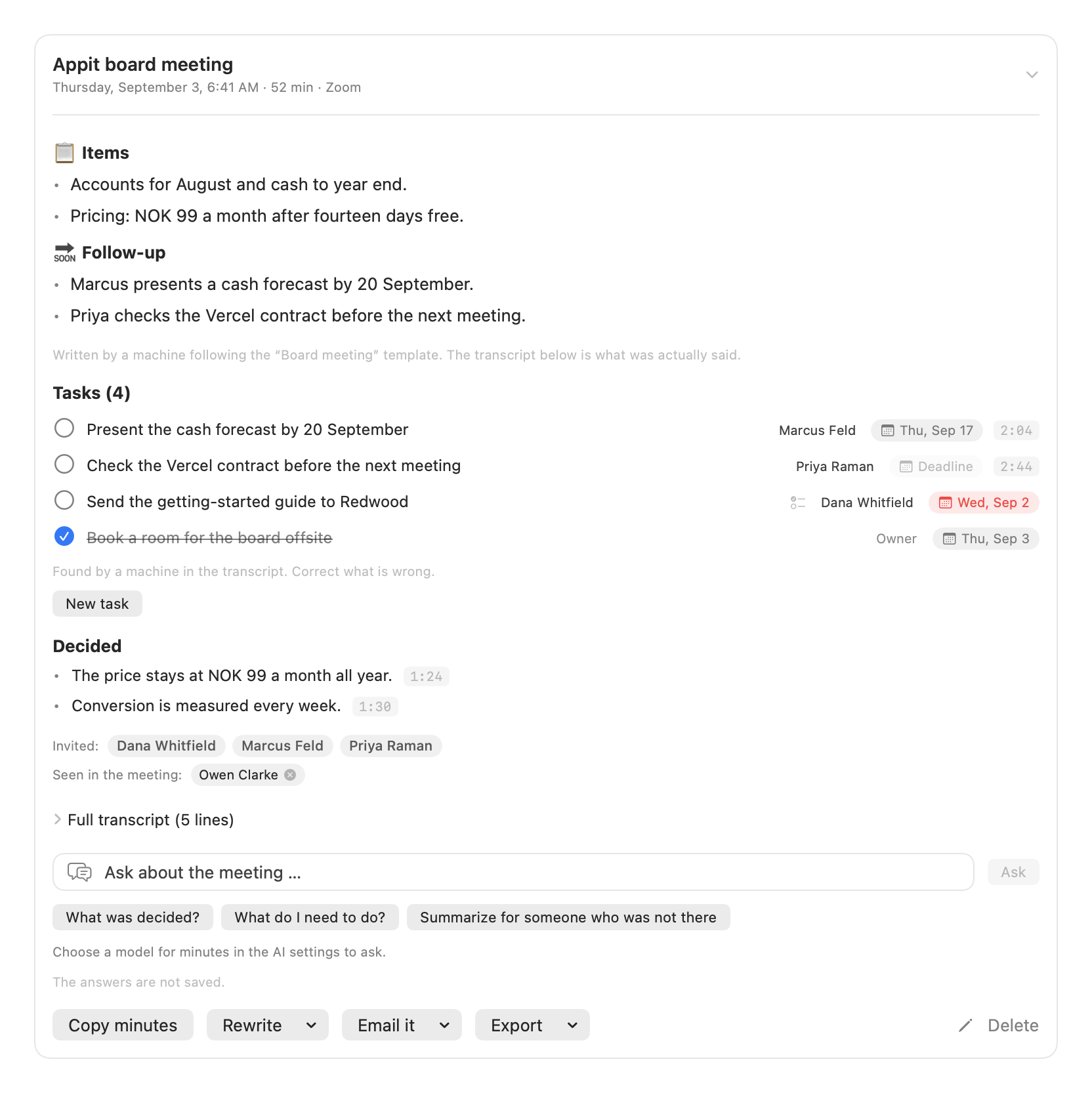
The meeting card with the task list: four tasks with a checkbox, an owner and a deadline chip, one of them red because it is overdue
Tasks on the meeting card, with owner and deadline. All of it can be corrected.
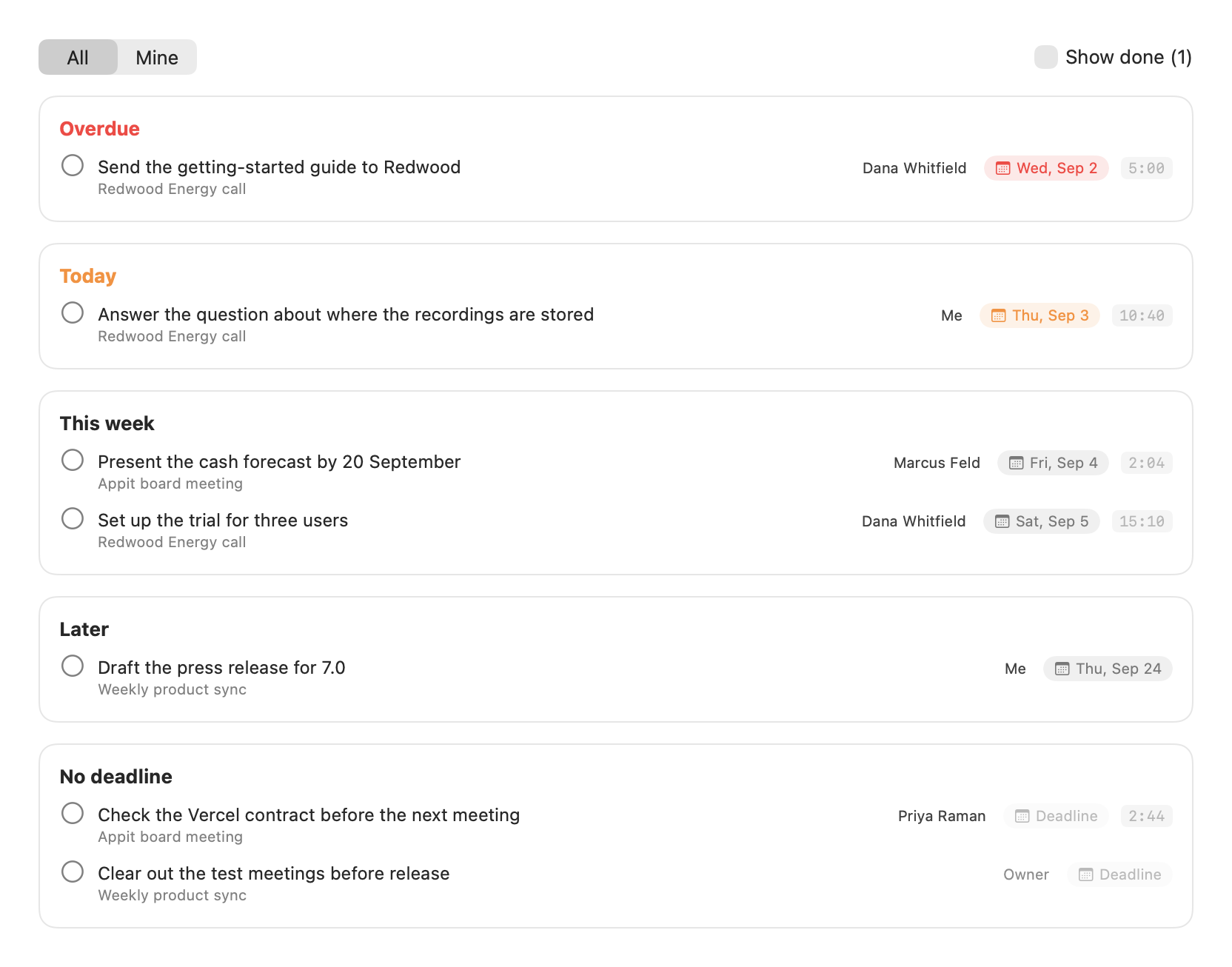
The Tasks page with the groups Overdue, Today, This week, Later and No deadline, and the All and Mine selector
Every task from every meeting, in five groups.
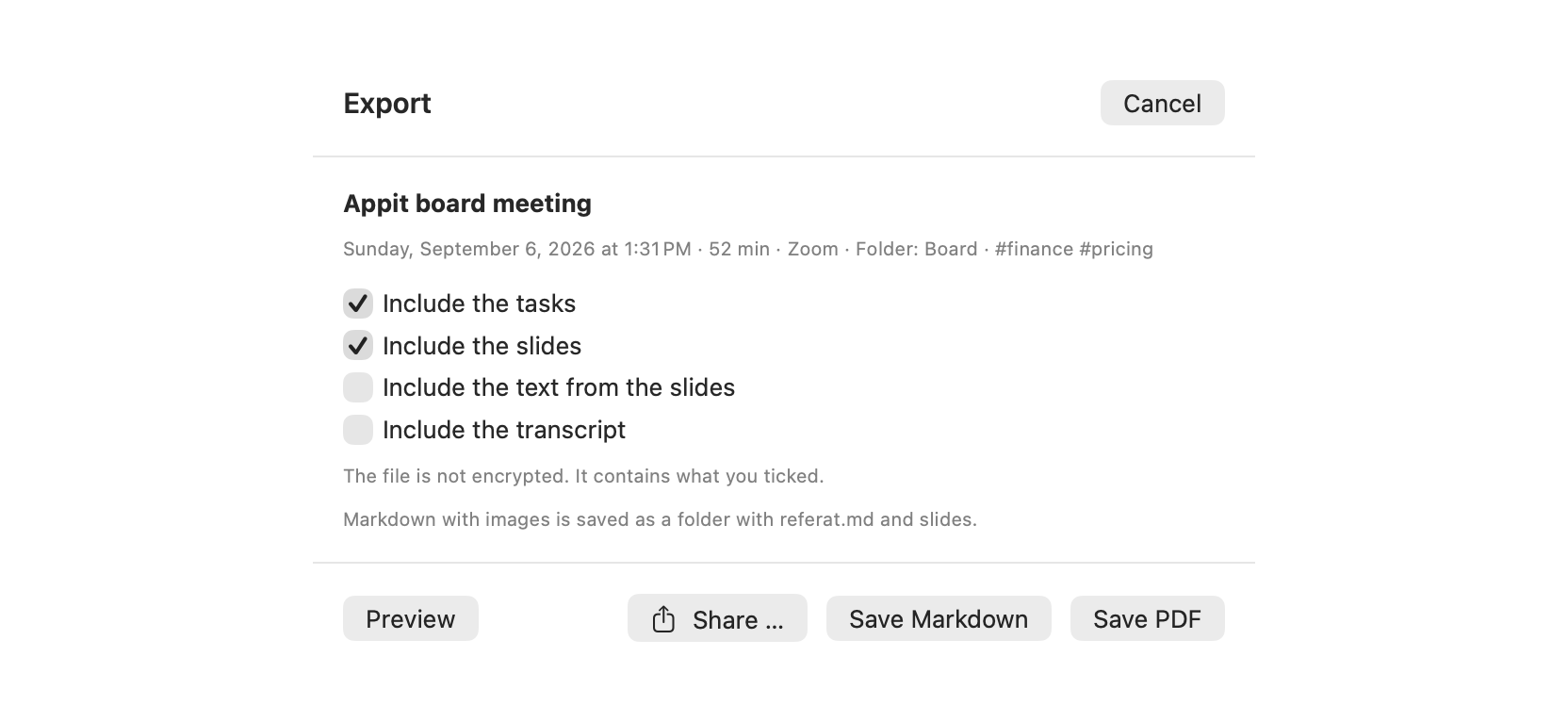
The export sheet with the tickboxes Include the tasks, the slides, the text from the slides and the transcript, and the buttons Preview, Share, Save Markdown and Save PDF
The export. You tick what goes in, and the sheet says the file is not encrypted.
Tasks

An owner and a deadline, or nothing

An owner has to be someone who was actually in the meeting, otherwise the field stays empty. A deadline has to be a date that was spoken. If it is unsure, it sets no deadline. The list is labelled “Found by a machine in the transcript. Correct what is wrong”.

Decisions

“Decided” is its own list

Each decision carries the time it was said. Click it and the transcript scrolls there, so you can read what was actually said around it.

Reminders

Deadlines become Mac notifications

On the day, at the hour you choose. The notification has Done, Postpone to tomorrow and Open, and works whether or not the app is running. Want the task in Reminders or the deadline in Calendar, you put it there yourself.

Export and Share

PDF, Markdown or onwards

The PDF has a header, page numbers and a footer saying the minutes were machine written. Markdown with images becomes a folder with the minutes and the slides. Share passes the minutes on through the macOS share menu.

The memory

Everything you sat through, in one place.

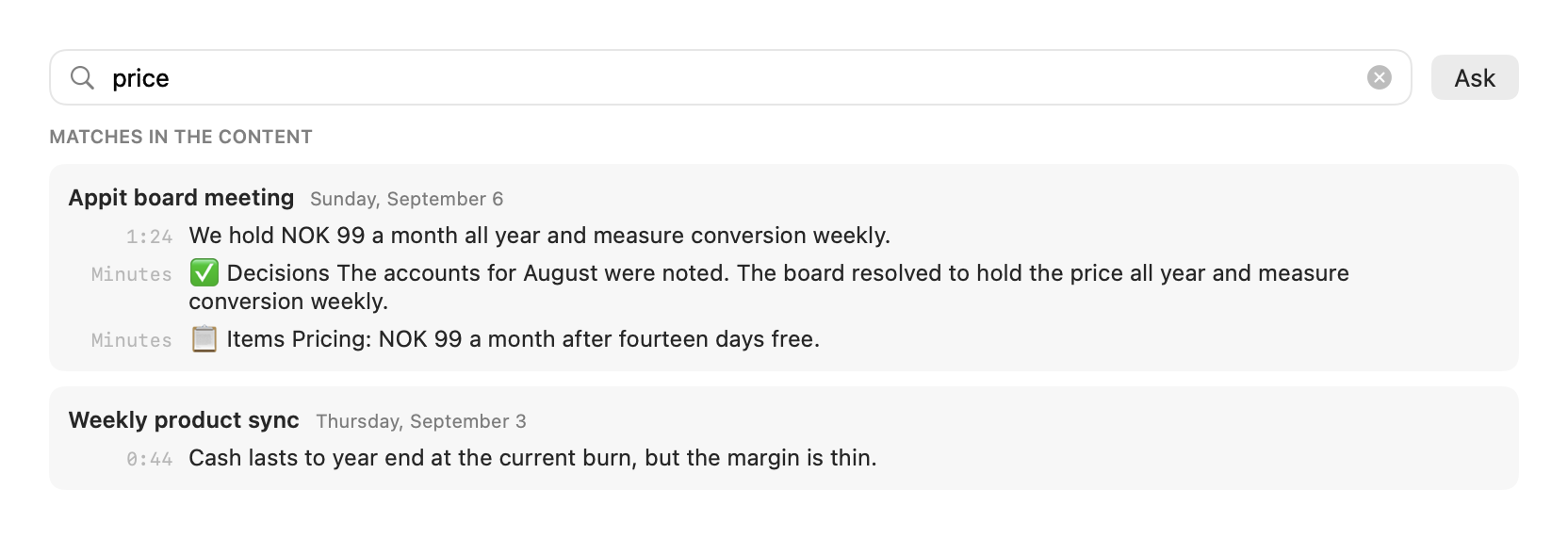
Six months of meetings are worth little if you have to remember which meeting it was in. Search covers the transcripts, the minutes, the tasks, the decisions and the text read from the slides, across every meeting you have.

The hit list as you type: the search field with a word in it and matches grouped by meeting, with timestamps and lines marked Minutes
Matches appear as you type, grouped by meeting.
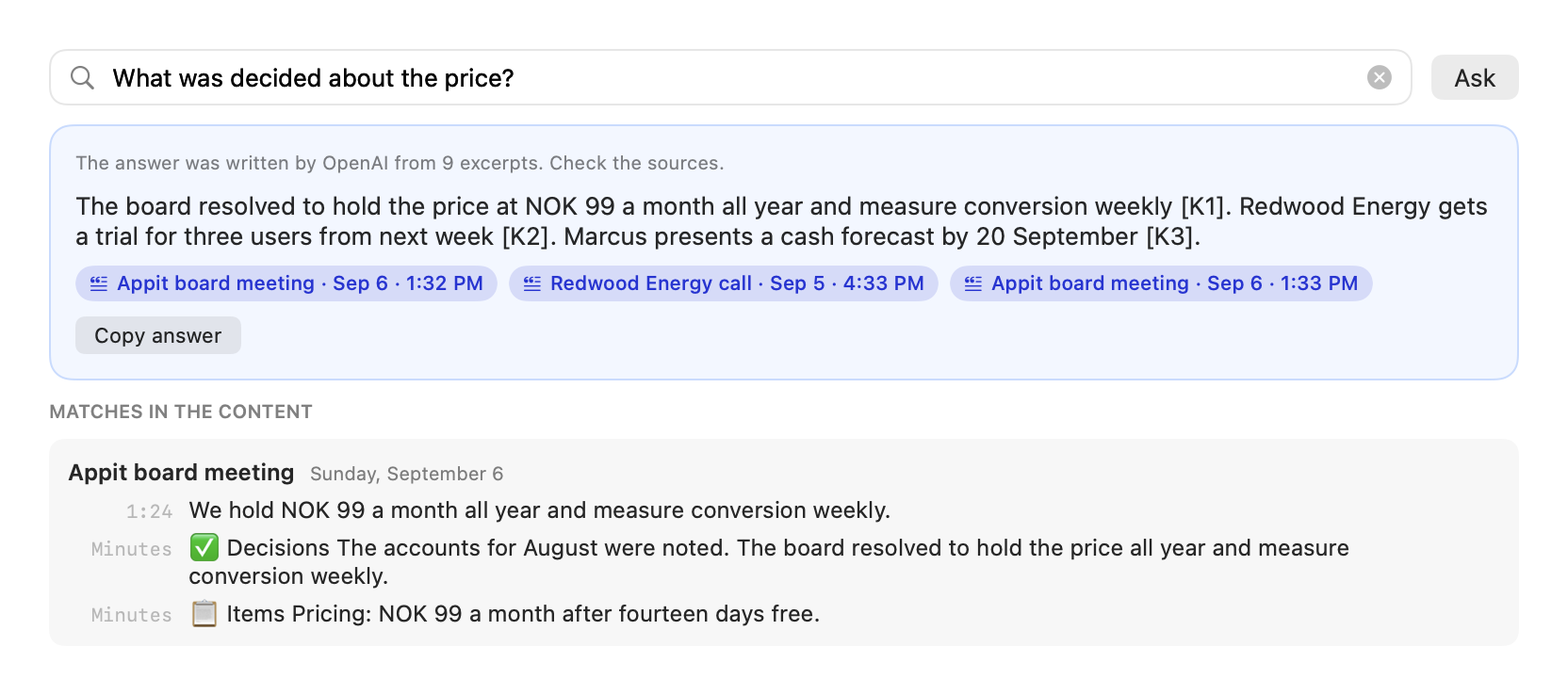
The answer card for the question “What was decided about the price”: a line naming the model and how many excerpts it used, answer text with source references, and three source chips with meeting name and time
The answer says who wrote it and how many excerpts it rests on. The sources are clickable.
The filter row with a folder picker and three tag chips, one of them selected
Folders and tags. A recurring meeting lands in its folder on its own.
Search

Words and meaning

Full text finds the word, and a language tool from Apple finds sentences that mean the same thing without using the same words. Both run on your Mac, and neither one is the model that writes your minutes. The language resources are fetched once from Apple, and they contain nothing from you.

Ask your meetings

With a source down to the minute

“What did we decide about the price?” The answer is labelled with the model that wrote it and how many excerpts it used, and every claim carries a source you can click. The meeting opens at that timestamp.

No model needed

Some answers need no AI at all

Ask what was decided, what you have to do, or who attended, and Automagisk answers from its own lists straight away. No model is called until you press Ask.

One meeting

Ask about this meeting

On the meeting card you can ask about that meeting alone, and have it cite the timestamps. The conversation lives in the window and is never saved.

The templates

22 templates. And your own.

A board meeting and a job interview should not come out as the same document. The template decides which headings the minutes get, and what the model is asked to look for under each of them. They sit in six drawers.

Everyday meetings

4 templates

Boards and formal bodies

4 templates

Sales and clients

5 templates

Projects and teams

4 templates

People

3 templates

Talks and content

2 templates

Your own

Write one yourself

A template is a set of headings with one sentence under each saying what belongs there. Copy a built-in one and change it, or start from a blank page.

From a meeting

Make a template from this meeting

Did yesterday’s minutes come out exactly the way you wanted? Press “Make a template from this meeting” and Automagisk reads the structure out of it and proposes a template you can adjust and keep.

Per series

A template per meeting series

The weekly can have its template and the board meeting its own. Upcoming meetings in the same series inherit the choice, and the folder, without you doing anything.

Privacy

What actually happens to what was said.

01

The audio never leaves the machine.

Speech recognition runs on your Mac. There is no upload to switch off, because there is no upload. The recording is deleted as soon as the minutes are written.

02

Only what an answer needs goes out.

The minutes and the answers are written by the model you chose. The text it needs goes there, and nothing else: never audio, never images. Pick Apple Intelligence or a model you run yourself, and nothing goes out at all.

03

Everything is encrypted, and deleted from one place.

The meetings, the slides, the search index and the vectors are encrypted with a key held in the login keychain on this Mac. Delete a meeting and everything belonging to it goes with it. Meetings are cleared after 90 days unless you set something else. A meeting with tasks that are not done stays until they are, or until the deadline is more than thirty days past.

04

No bot in the meeting, and no account to ask for.

No new participant walks into your meeting. Automagisk hears the meeting app already running on your machine, so nobody else has to approve a service for you to get minutes. Want to tell them anyway, the app can announce that the meeting is being recorded.

05

Everything machine written says so.

The minutes, the tasks and the answers state that a machine wrote them, and which one. No reading of mood, engagement or who people are. No voice prints are stored, and nothing is compared between meetings.

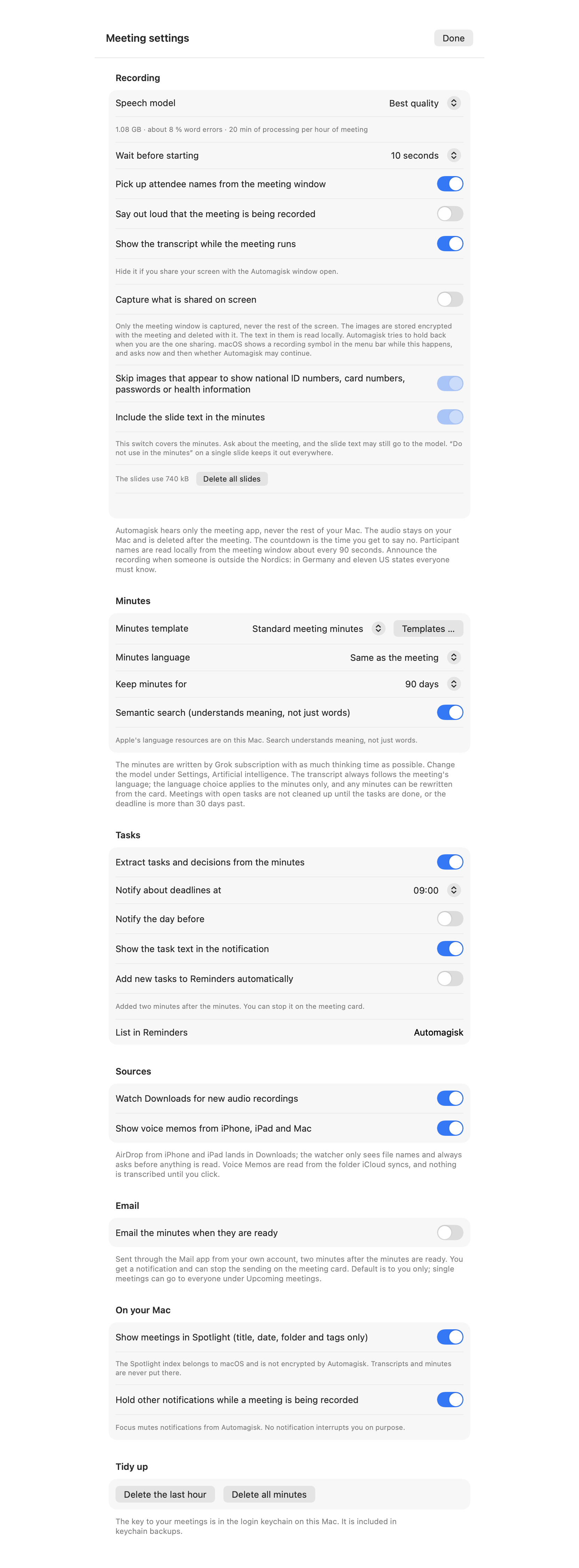
The whole meeting settings sheet: the sections Recording, Minutes, Tasks, Sources, Email, On your Mac and Tidy up
The whole settings sheet for meetings, here on a Mac where screen capture has been turned on. Scroll inside the image: everything that can be switched off is here.

You are responsible for the meetings you record, and for telling the others where that is required. If someone shares a screen, the images can hold information about people other than you. That is why screen capture is off until you turn it on, why the filter skips what looks sensitive, and why everything is deleted with the meeting.

The difference

Two ways of doing this.

We name nobody, and we claim nothing about what any particular service does. This is what follows from doing the work on a server rather than on the Mac you already own.

Transcribed on a server

For a server to transcribe the meeting, the audio has to get there. That is not a setting, it is what a cloud service is: a machine that never receives the audio cannot write it down.

Transcribed here

Speech recognition runs on your Mac, in Norwegian with the National Library’s model. The audio stays here, and is deleted as soon as the minutes are written.

Deletion you have to ask for

Once the audio has been sent, deleting it is something you request and get confirmed. That the server stands in Europe is a good answer to where the data is. It is not an answer to whether it was sent.

Deletion you do yourself

The meetings sit encrypted on your own machine. Delete a meeting and the transcript, the slides, the search index and the vectors go with it, in the same gesture.

Machine time somebody pays for

The work happens on machines somebody owns and runs, and that bill has to be covered. How, each service decides for itself.

NOK 99 for the whole app

The work happens on the Mac you already own. Meeting minutes are part of Automagisk, not an add-on: all your Macs on one subscription. The model you pick for the minutes you pay the provider for, or you run it free on your Mac.

This choice has a price too: your Mac has to be on, and you have to be in the meeting yourself. Automagisk does not take minutes from a meeting you are not in.

Try it in your next meeting.

Free for fourteen days, no card. Then NOK 99 a month for all of Automagisk, meeting minutes included.

Download Automagisk

macOS 26 or newer · Apple Silicon

See what the price covers